
Click any keyword to access more visibility information in detail.
Toolbar
Select a time range to manage how data is presented in this view. Default is the previous full week.

Organic Visibility
Here you can find all your results for this keyword on all available search engines.

- Search Engine: Selected search engine.
- Location: Selected location (city).
- Position: Your website’s position on search engine results. Green colors indicate 1st result page positions, yellow and orange indicate 2nd result page positions. Positions are search engine and location –specific.
- Trend: How your position has changed during a selected time range (toolbar). The trend is search engine and location –specific.
- Landing Page: a) the content of your result on the selected search engine and b) click to see where your potential customers are forwarded from the search engine results.
- Description: The meta-description of your landing page. This is also shown within the search engine result.
- Visits: How many visits your landing page has gained from the selected search engine’s organic results within the selected time range.
- Pages/Visit: The average amount of pages the visitors have browsed within your website.
- Bounce Rate: The percentage of visitors who enter the site and “bounce” (leave the site) rather than continue viewing other pages.
Paid Visits
All landing pages your advertisements, which were shown with this keyword, have forwarded visitors to during the selected time range.

- Search Engine: from which search engine your paid visitors arrived
- Landing Page: a) the content of your result on the selected search engine and b) click to see where your potential customers are forwarded from the search engine results.
- Visits: How many paid visits your landing page has gained from the selected search engine within the selected time range.
- Pages/Visit: The average amount of pages the visitors have browsed within your website.
- Bounce Rate: The percentage of visitors who enter the site and “bounce” (leave the site) rather than continue viewing other pages.
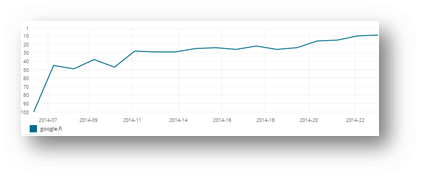
Position History
The development of an individual keyword’s positions during the selected time range.
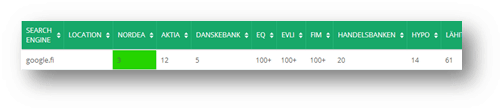
Competition in Search Engines
The competition on selected search engines with an individual keyword.
Search Engine Results tab
Toolbar
Choose the week you want to investigate.
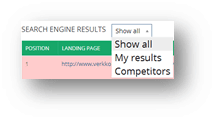
Result filter
Choose to view all results, only your own results or only competitors’ results.
Results
In this view you can see top100 results on selected search engine and week with an individual keyword. Your own results are colored with green and competitors’ results are colored with red. Other results are neutral, and can be added as competitors or own domains.
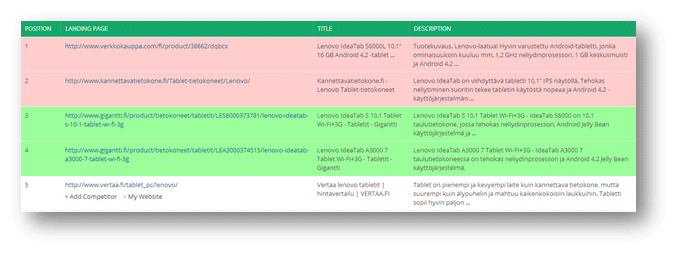
- Position: The first 100 positions on the selected search engine and week.
- Landing Page: The landing pages for all results. Click to find out where they lead.
- Title: The title of the landing page which is also shown as the result content on search engine results.
- Description: The meta-description of the landing page. This is also shown within the search engine result.
- Other:
- Add Competitor: Add the result domain as a new competitor.
- My Website: Add the result domain as your own.